
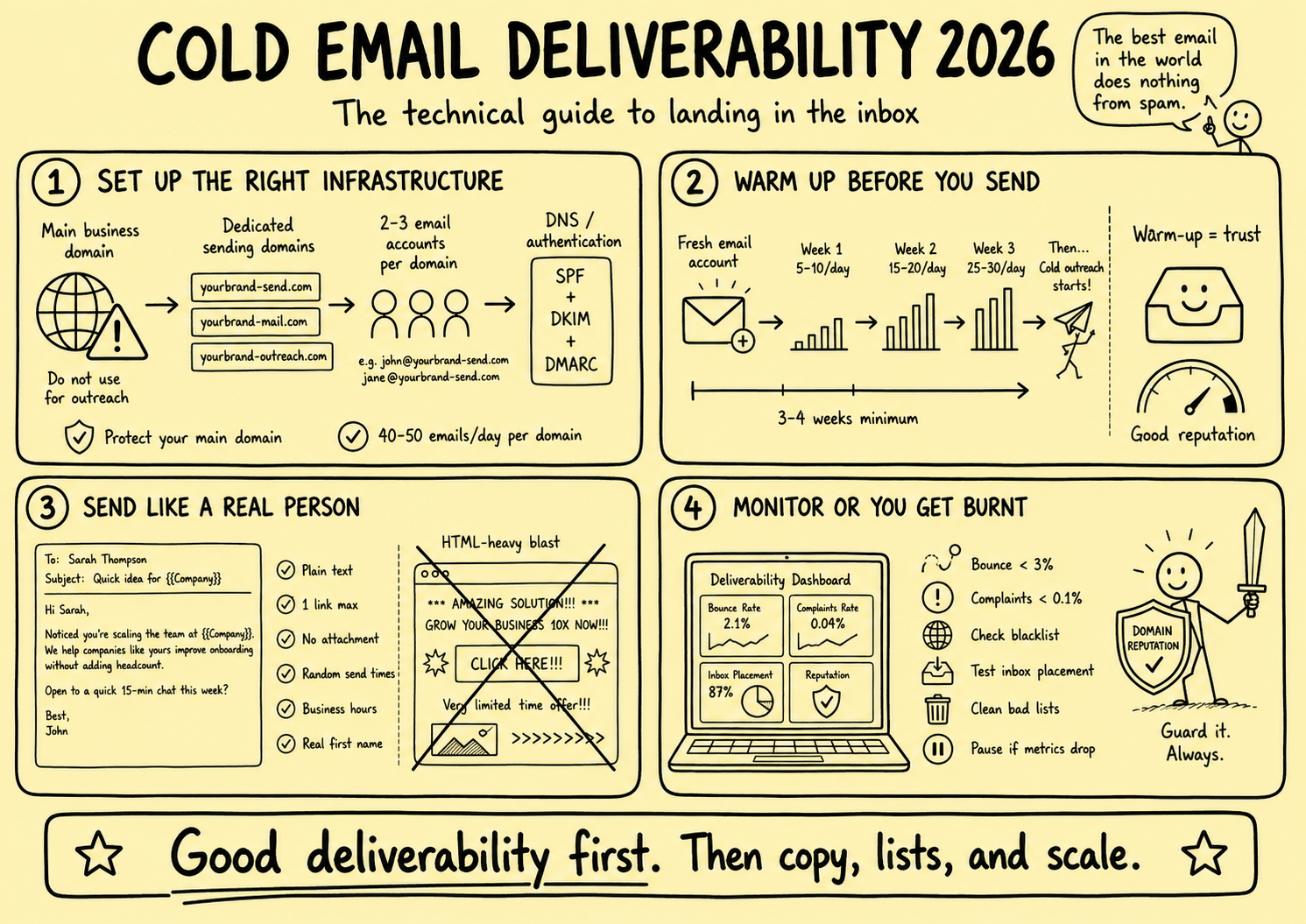
No domain, DNS record, sending pattern, software, or message format can guarantee that an email reaches the primary inbox every time. Receiving providers and recipient systems make placement decisions using signals the sender does not fully control or observe.
This article previously promised inbox placement and prescribed lookalike sending domains, exact account and daily-volume limits, copy-and-paste SPF records, fixed DMARC escalation dates, artificial warm-up networks, simulated engagement, randomized “human-like” sending, plain-text-only messages, vendor tools, universal bounce and complaint thresholds, blacklist schedules, seed-test frequency, fixed recovery steps, dedicated-IP thresholds, and one-day setup and weekly-maintenance times. Those guarantees, tactics, figures, and vendor recommendations were removed.
Direct answer: Govern delivery as a measured system. Use authentic identity, verified domain ownership, correctly scoped SPF, DKIM, and DMARC, current provider requirements, action-level eligibility, working unsubscribe and suppression, controlled vendors, reliable event data, incident response, and tested recovery. Separate provider acceptance, mailbox placement, rendering, and human attention instead of calling them all “deliverability.”
This is operating guidance, not legal, privacy, marketing, cybersecurity, DNS, licensing, valuation, or transaction advice. Requirements vary by jurisdiction, provider, recipient, traffic type, volume, infrastructure, relationship, and time. Qualified owners and technical advisers should approve changes.
Define the delivery stages
Use a precise event model:
| Stage | Evidence | What it does not prove |
|---|---|---|
| Released | The brokerage approved and handed the message to an authorized sender | That the remote provider accepted it |
| Authenticated | SPF, DKIM, DMARC, and alignment produced recorded results | That the contact was eligible or the message reaches inbox |
| Accepted | The receiving server returned an SMTP acceptance for the message | Primary-inbox placement, rendering, or human attention |
| Deferred | The receiving server temporarily declined delivery under its response code | The final outcome without later retry evidence |
| Rejected | The receiving server returned a permanent failure under its response code | The exact business cause without provider-specific diagnosis |
| Placed | A recipient system classified the message into inbox, category, quarantine, or junk | That the person saw or wanted it |
| Rendered or opened | A client or proxy requested content or tracking resources | A unique human read, interest, or intent |
| Replied, objected, or complained | A person or provider created a recorded event | Qualification, transaction progress, or causation |
Use provider event IDs, SMTP enhanced status codes, timestamps, domains, message IDs, authentication results, and source logs. Do not infer inbox placement from a delivered label or infer delivery failure from a drop in opens.
Separate brokerage traffic classes
Protect operationally important communications from inappropriate marketing dependencies:
- Internal and staff mail
- Seller and buyer prospecting
- Requested information and service messages
- Relationship and referral communications
- Calendar and appointment notices
- Valuation workflow notifications
- Confidential listing and opportunity communication
- Offers, diligence, financing, negotiation, and closing messages
- Security, privacy, legal, and incident notices
Each class needs an owner, purpose, approved domains and services, identity, authentication, eligibility, confidentiality, retention, monitoring, priority, fallback, and recovery procedure.
Do not route live-deal or confidential communications through an outreach platform merely because it can send email. A marketing provider should not receive valuation files, buyer identities, offers, diligence material, or transaction threads unless the specific use is authorized and controlled.
Choose domains from identity and risk
There is no responsible universal instruction to use the primary domain, a subdomain, or a separate domain.
Evaluate:
- Whether a recipient can clearly identify the brokerage and sender
- Domain ownership, registration, renewal, recovery, and administrative control
- Similarity to the primary brand and risk of confusion or impersonation
- Separation needed between traffic classes
- Sending and receiving provider policies
- SPF, DKIM, DMARC, DNS, TLS, and reporting support
- Reputation and failure impact on employee, client, and transaction mail
- Website, privacy, preference, and contact destinations
- Vendor access, portability, suspension, and termination
- Monitoring, incident response, and decommissioning
Do not register deceptive lookalikes, conceal the promoted firm, use an employee's identity without authority, or redirect a domain merely to make it appear legitimate. Maintain a domain register with registrar, registrant, DNS host, administrators, authentication owners, services, renewal, recovery, purpose, and status.
Understand what SPF does
RFC 7208 defines the Sender Policy Framework. SPF lets a domain publish which hosts are authorized to use that domain in specified SMTP identities. It does not authenticate the visible From header by itself and does not prove the message is wanted or truthful.
Operational controls should include:
- Inventory every authorized sender before changing the record
- Use provider-published values for the actual service and tenant
- Avoid copying a sample record from an unrelated setup
- Maintain one valid policy for the relevant domain rather than conflicting records
- Account for forwarding, relays, includes, redirects, DNS lookup behavior, and failure modes
- Remove decommissioned services promptly
- Test real messages at each receiving provider and retain authentication results
- Monitor changes through version control or an approved DNS change process
A static green check from a DNS tool does not prove all legitimate message paths pass or that unauthorized paths fail.
Understand what DKIM does
RFC 6376 specifies DomainKeys Identified Mail. DKIM applies a cryptographic signature that lets a verifier associate responsibility with a signing domain and check whether signed content changed.
Govern:
- Signing domain and alignment strategy
- Selector ownership and uniqueness
- Key generation, length, storage, access, rotation, revocation, and expiry
- Which headers and body content are signed
- Multiple senders and intermediary modifications
- Vendor-generated keys and offboarding
- Test messages, verification results, and failure alerts
DKIM passing does not mean the visible sender is authorized by the brokerage, the content is accurate, or the contact is eligible.
Understand what DMARC does
RFC 7489 describes Domain-based Message Authentication, Reporting, and Conformance. DMARC evaluates alignment between the visible From domain and an authenticated SPF or DKIM domain, and lets a domain publish policy and reporting destinations.
Before changing policy:
- Inventory every legitimate source using the From domain, including vendors, forms, CRM, support, finance, and transaction systems.
- Confirm SPF or DKIM authentication and DMARC alignment for each source.
- Secure and validate aggregate-report destinations and access.
- Classify unknown sources as legitimate, misconfigured, forwarded, or unauthorized from evidence.
- Correct legitimate failures and remove unauthorized senders.
- Define the policy objective, affected domains and subdomains, percentage behavior, rollback, and owner.
- Test under a staged, monitored change plan appropriate to the domain's risk.
Do not move from monitoring to quarantine or rejection on a universal two- or four-week schedule. The correct timing depends on complete traffic visibility, valid alignment, business criticality, provider behavior, and recovery readiness. A policy of p=none requests reports but does not ask receivers to quarantine or reject failing messages.
Apply current receiving-provider requirements
Provider requirements are minimum conditions for specified traffic, not inbox guarantees. Record the version and access date because they change.
The Google email sender guidelines describe requirements for mail to personal Gmail accounts, including authentication, valid DNS, TLS, RFC formatting, complaint levels, and restrictions on impersonation. They add SPF, DKIM, DMARC, From-domain alignment, and one-click unsubscribe requirements for the traffic Google defines as bulk.
Yahoo's sender best practices describe authentication, DNS, RFC formatting, complaint rates, DMARC alignment, and easy unsubscribe for the traffic Yahoo defines as bulk.
Microsoft's Outlook.com authentication guidance documents stricter authentication for domains it defines as high-volume senders to Microsoft consumer email services, including SPF, DKIM, DMARC, and alignment expectations tied to the documented rejection.
Build a provider register:
- Receiving provider and account population
- Applicable sender category and calculation method
- Current requirements and recommended practices
- Authentication and alignment evidence
- Complaint, unsubscribe, and reputation dashboards
- Error codes, postmaster tools, feedback loops, and support paths
- Policy owner, checked date, next review, and change alerts
Do not combine Google, Yahoo, Microsoft, corporate gateways, and security appliances into one threshold. Their definitions, denominators, dashboards, filtering, and enforcement differ.
Implement unsubscribe correctly
RFC 8058 specifies one-click functionality using List-Unsubscribe and List-Unsubscribe-Post headers, an HTTPS endpoint, and a DKIM signature covering the relevant headers. Follow the current receiving-provider requirements for applicable traffic.
One-click unsubscribe is not the whole preference system. Also provide any required visible method, process direct reply requests, and apply preferences across every sender that could recreate contact.
The FTC CAN-SPAM business guide explains U.S. commercial-email duties including identity, subjects, disclosures, postal information, opt-out mechanisms and timing, and responsibility when another provider sends. The ICO B2B guidance explains that UK requirements depend on subscriber type, personal-data use, consent or another appropriate basis, objections, preference services, transparency, and circumstances.
Evaluate eligibility and legal requirements separately for every jurisdiction and audience. Authentication is not consent, legitimate interest, reasonable expectation, or permission.
Centralize suppression before sending
Maintain a minimal durable preference record containing:
- Person, address, entity, and stable identifiers
- Brand, purpose, list, and channel scope
- Exact event and source
- Effective time and policy interpretation
- Systems and vendors notified
- Propagation, failure, retry, and reconciliation evidence
- Approved exceptions and responsible owner where applicable
Check suppression before selection, export, import, scheduling, retry, and delivery. Provider unsubscribe webhooks and direct replies should update the common record promptly. A data refresh, changed address, new domain, new vendor, or AI match must not bypass the preference.
Maintain an exception queue for failed webhooks, conflicting scope, unknown identifiers, vendor outages, duplicates, and stale copies.
Use verified, eligible data
Mailbox verification may estimate technical reachability. It does not establish identity, current role, accuracy of other fields, lawful or policy eligibility, relevance, or recipient expectation.
Retain field-level provenance, observed and verified times, purpose, supplier and license terms, corrections, confidence, and expiry. Resolve aliases, catch-all domains, shared mailboxes, former employees, role accounts, subsidiaries, and duplicate people before delivery.
Separate:
- Syntax and DNS validity
- Mail exchanger availability
- Provider acceptance of a probe, if used and permitted
- Historical delivery result
- Current person and role identity
- Current action-level eligibility
Do not send real marketing merely to test an address. Review validation services for data sources, subprocessors, retention, security, contractual use, provider policy, and deletion.
Ramp legitimate traffic without simulated engagement
There is no universal warm-up duration, daily increment, account ceiling, or domain count.
Do not use a network that manufactures opens, replies, spam-folder rescues, or fake conversations to manipulate provider systems. Such activity can create policy, security, credential, privacy, evidence, and account risks while obscuring real recipient feedback.
For a new or changed stream:
- Confirm authentic identity, eligible recipients, provider terms, and sending capacity.
- Validate DNS, authentication, alignment, TLS, formatting, unsubscribe, event capture, and suppression.
- Begin with legitimate traffic the brokerage can serve and review.
- Segment by provider, traffic class, domain, sender, campaign, and cohort.
- Monitor current provider-defined evidence and operational guardrails.
- Change one material factor through an approved test.
- Pause or narrow when quality, preference, security, or provider thresholds are breached.
Volume should follow recipient appropriateness, data quality, broker capacity, and observed provider behavior—not an arbitrary target.
Avoid “human-like” evasion tactics
Do not randomize timing, impersonate personal behavior, add profile photos, or use individual names merely to evade detection. Sender identity should be accurate and authorized.
There is no universal deliverability rule requiring plain text, forbidding HTML, limiting every message to one link, or treating all attachments as spam. Content, links, images, attachments, tracking, redirects, and formatting can affect provider and security decisions, but the effect depends on context.
Choose the minimum content needed for the approved purpose. Validate:
- Accurate From, Reply-To, subject, and promoted identity
- Truthful claims and appropriate disclosures
- Accessible text and rendering
- HTTPS destinations owned or approved by the brokerage
- Redirect chains, reputation, and link consistency
- Attachment necessity, type, size, scanning, and secure alternatives
- Tracking purpose, transparency, consent or other basis, proxy effects, and retention
- RFC-conformant headers and body
- Unsubscribe visibility and function where applicable
Do not diagnose placement from aesthetics alone.
Treat tracking and opens as weak evidence
Image proxies, privacy protection, security scanners, link rewriting, forwarding, prefetching, blocked images, shared mailboxes, and client settings can distort opens and clicks.
Do not claim that engagement improves placement for a brokerage unless the provider documents the exact relationship and the measurement supports it. Never prioritize someone for more contact merely because a tracking pixel loaded.
Use opens and clicks, if collected appropriately, as limited technical observations. They do not prove a human read, seller intent, buyer qualification, interest, or permission.
Define delivery metrics by provider
Every metric needs an event definition, numerator, denominator, cohort, window, exclusion, source, and owner.
Track:
- Released messages by traffic class and eligible cohort
- Authentication pass and failure by SPF, DKIM, DMARC, alignment, provider, and sender
- SMTP accepted, deferred, and rejected events by enhanced status code
- Final hard and soft failure under the sending provider's documented definitions
- Complaint and feedback-loop events using the receiving provider's denominator
- Unsubscribe events, processing time, propagation, and failures
- Duplicate sends, retry errors, and suppression escapes
- Vendor, account, credential, DNS, or policy changes
- Reply and complaint classification quality
- Seed or panel placement tests with their provider, account, sampling, and representativeness limits
- Broker-accepted seller and buyer progression separately from delivery
Inbox placement cannot usually be measured directly for the entire recipient population. A seed test observes a small controlled panel; it does not guarantee placement for real recipients. A blacklist lookup covers the lists and identifiers queried; it is not a universal reputation verdict.
Do not import generic bounce or complaint benchmarks. Use applicable provider thresholds exactly as defined, alongside stricter internal guardrails if the brokerage approves them. Keep provider acceptance, placement, attention, reply, qualification, and transaction outcomes separate.
Monitor configuration and change
Maintain automated checks where appropriate for:
- Domain registration, expiration, registrar lock, and recovery contacts
- DNSSEC where adopted
- MX, SPF, DKIM selectors, DMARC, reporting, and alignment
- TLS and certificates
- Authorized senders, integrations, API keys, OAuth grants, and forwarding
- Mailbox and administrator security
- Provider requirements, dashboards, error codes, and feedback loops
- Unsubscribe endpoints and suppression propagation
- Data exports, vendor access, and subprocessors
Alert on meaningful changes and route them to a named owner. Preserve before-and-after values, change request, approver, test evidence, rollback, and incident link.
Govern vendors and access
Inventory every registrar, DNS host, mailbox provider, sending platform, verification service, analytics tool, link domain, agency, contractor, and monitoring service.
Require:
- Named accounts, strong authentication, and least privilege
- No shared administrator credentials
- Approved service accounts and scoped integrations
- Data-purpose, retention, deletion, security, and subprocessor terms
- Domain, DNS, mailbox, data, logs, and configuration ownership
- Change notification, incident response, support, and audit evidence
- Export formats, transition assistance, credential rotation, and secure deletion
Separate outreach access from seller mandates, valuation files, buyer qualification, confidential opportunities, offers, diligence, negotiation, and live-deal mail.
Prepare for compromise and delivery incidents
The NIST Cybersecurity Framework 2.0 provides voluntary guidance organized around Govern, Identify, Protect, Detect, Respond, and Recover, with emphasis on roles, authorities, policy, oversight, and supply-chain risk.
Define incidents such as:
- Unauthorized domain, DNS, mailbox, API, OAuth, or vendor access
- Phishing or impersonation using a brokerage domain
- Unexpected DKIM selector or SPF source
- DMARC failure spike or unrecognized traffic
- Credential theft or malicious forwarding
- Bulk release error or duplicate send
- Suppression or unsubscribe failure
- Wrong recipient, sender, or confidential disclosure
- Provider suspension, block, or material policy failure
- Logging, webhook, or reconciliation loss
The runbook should name detection sources, severity, incident owner, pause authority, containment, credential and key rotation, DNS rollback, provider contacts, evidence preservation, notification analysis, correction, recovery tests, and post-incident review.
Do not continue sending merely to see whether the problem resolves.
Diagnose before changing volume
When delivery evidence changes:
- Confirm the instrumentation and denominator did not change.
- Segment by provider, traffic class, domain, IP where relevant, sender, campaign, list source, and time.
- Review SMTP codes, authentication, alignment, DNS, TLS, complaint, unsubscribe, and provider-dashboard evidence.
- Check recent configuration, content, link, vendor, recipient, and volume changes.
- Investigate compromise, suppression failure, duplicate release, or confidential-data exposure.
- Pause affected traffic when risk or uncertainty warrants it.
- Form competing hypotheses and test one controlled change.
- Validate recovery across real provider evidence and representative traffic.
- Reconcile missed events and update the incident record.
A lower open rate alone does not establish spam placement. Increasing simulated engagement is not a corrective action.
A controlled preflight
Before releasing a new broker email stream, verify:
- [ ] Approved purpose, recipient class, jurisdiction, capacity, and owner
- [ ] Authentic domain and sender identity
- [ ] Current provider terms and requirements recorded
- [ ] Complete domain, DNS, service, and administrator inventory
- [ ] SPF source authorization tested on real paths
- [ ] DKIM signing, selector, key ownership, and verification tested
- [ ] DMARC alignment, reporting, policy, and rollback approved
- [ ] TLS, DNS, RFC formatting, From, Reply-To, and link destinations validated
- [ ] One-click and visible unsubscribe implemented where applicable and tested
- [ ] Central suppression checked before selection and delivery
- [ ] Recipient identity, source, accuracy, purpose, and eligibility approved
- [ ] Content, claims, disclosure, confidentiality, and tracking reviewed
- [ ] Provider events, logs, dashboards, alerts, and reconciliation working
- [ ] Vendor access, retention, subprocessors, and exit controls approved
- [ ] Incident owner, pause authority, rollback, and recovery test ready
- [ ] Bounded pilot and stop conditions approved
Record evidence for each control. A checked box without an owner, test, date, and artifact is not a control.
The operating principle
Email delivery is a shared, changing system—not a trick for appearing human and not a promise of inbox placement. A mature brokerage controls what it can prove: authentic identity, appropriate contact, correct authentication, current provider compliance, protected preferences and confidential data, observable events, accountable vendors, and tested recovery.
Systemify helps business brokers build controlled buyer and seller pipeline infrastructure and deal-operations systems. Start with the Business Broker Pipeline & Operations Assessment, review operations streamlining for brokerage workflows, or talk to a Broker Systems Expert.
Sources and evidence notes
Primary or first-party materials reviewed for this article. Scope and limitations are stated rather than silently generalized.
- Email sender guidelinesGoogle · Accessed
Current Gmail requirements and guidance for authentication, DNS, TLS, RFC formatting, complaint rates, From-domain alignment, and one-click unsubscribe for applicable marketing traffic.
- Sender Best PracticesYahoo Sender Hub · Accessed
Current Yahoo requirements and recommendations for SPF, DKIM, DMARC, DNS, RFC formatting, complaint rates, one-click and visible unsubscribe, and preference handling.
- Fix NDR error 550 5.7.515 in Outlook.comMicrosoft Support · Accessed
Current Microsoft consumer-email guidance describing authentication expectations for high-volume sending domains and how SPF, DKIM, DMARC, and From-domain alignment relate to the documented rejection.
- RFC 7208: Sender Policy Framework (SPF)Internet Engineering Task Force · Published · Accessed
The standards-track specification for authorizing hosts to use domain names in SMTP identities and evaluating SPF results.
- RFC 6376: DomainKeys Identified Mail (DKIM) SignaturesInternet Engineering Task Force · Published · Accessed
The standards-track DKIM specification for domain-level responsibility through cryptographic message signatures.
- RFC 7489: Domain-based Message Authentication, Reporting, and Conformance (DMARC)Internet Engineering Task Force · Published · Accessed
The informational DMARC specification describing identifier alignment, published policy, aggregate and failure reporting, and receiver handling.
- RFC 8058: Signaling One-Click Functionality for List Email HeadersInternet Engineering Task Force · Published · Accessed
The standards-track specification for signaling one-click unsubscribe using List-Unsubscribe and List-Unsubscribe-Post headers with a covered DKIM signature.
- CAN-SPAM Act: A Compliance Guide for BusinessU.S. Federal Trade Commission · Accessed
Official U.S. guidance on commercial email identity, subjects, disclosures, postal information, opt-out mechanisms and timing, message purpose, and vendor responsibility.
- Business-to-business marketingUK Information Commissioner's Office · Accessed
Current UK guidance on how B2B marketing requirements vary by channel, subscriber type, use of personal data, consent or other basis, preference services, objections, and transparency.
- The NIST Cybersecurity Framework (CSF) 2.0U.S. National Institute of Standards and Technology · Published · Accessed
Voluntary cross-sector guidance for governing, identifying, protecting, detecting, responding to, and recovering from cybersecurity risk, including organizational and supply-chain responsibilities.
Brokerage data stays governed. Material deal decisions stay human.
We design business broker systems around least-privilege access, documented data flows, protected credentials, traceable activity, and approval gates. Systemify does not use client information to train its own models. When a workflow uses an external AI provider, its purpose, data fields, and retention approach are documented and approved before client data is transferred.
Apply this to your brokerage
We can assess your buyer and seller pipeline, valuation and vetting workflows, communications, documents, controls, and handoffs before recommending what to build.
Talk to a Broker Systems Expert